If you have ever asked an employee to use their personal iPhone or Android for work email, you have probably encountered “the resistance“.
The moment you ask them to “enroll” their device in your IT system, the walls go up. “Will you see my photos? Can you track my location? What if you accidentally wipe my phone?” (Or maybe you don’t ask them to enrol anything!)
These are valid concerns. For years, the only way to secure corporate email on a mobile device was to take control of the entire device using MDM (Mobile Device Management). It was an all-or-nothing approach that made employees uncomfortable.
But there is a better way. It is called MAM, and it is likely the feature you have been looking for – even if you didn’t know it existed!
The “Old” Way: MDM (Mobile Device Management)
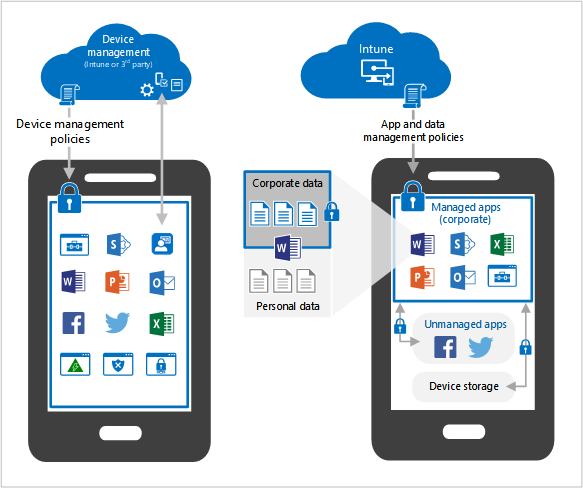
Most people are familiar with MDM. This is the traditional standard. When you enrol a device in MDM (using Microsoft Intune, for example), the company gains administrative control over the hardware.
The Solution: What is MAM?
MAM stands for Mobile Application Management.
Unlike MDM, which controls the device, MAM only controls the application. It allows IT to place a protective “bubble” around specific corporate apps – like Microsoft Outlook, Teams, and OneDrive – while leaving the rest of the phone completely untouched.
The “Container” Concept
Most people are familiar with MDM. This is the traditional standard. When you enrol a device in MDM (using Microsoft Intune, for example), the company gains administrative control over the hardware.
What information can an organisation see when I enroll my device?
Things your organisation can never see
Your organisation can’t see:
- Calling and web browsing history
- Email and text messages
- Contacts
- Calendar
- Passwords
- Pictures, including what’s in photos or the camera roll
- Content of user-created documents
Things your organisation can always see
Your organisation can always see:
- Device owner
- Device name
- Device serial number
- Device model, such as Google Pixel
- Device manufacturer, such as Microsoft
- Operating system and version, such as iOS 12.0.1
- Device IMEI
Why MAM Wins for Personal Devices (BYOD)
If you use Microsoft 365 and Intune, you can deploy MAM policies that solve the biggest security headaches without upsetting your staff.
1. The “Copy/Paste” Block
The most powerful feature of MAM is controlling data leakage. You can set a policy that says:
2. The “Selective” Wipe
If an employee leaves the company or loses their phone, you don’t have to factory reset the device. With MAM, you issue a “App Selective Wipe.” Next time the phone connects to the internet, it deletes only the Outlook email, Teams chats, and OneDrive files. The user’s personal photos, contacts, and apps are left exactly as they were.
3. No “Enrolment” Scares
With MAM, the user simply downloads Outlook from the App Store and signs in. They don’t have to give the company “Device Administrator” rights. Intune recognizes their login and says, “Okay, you can access this email, but we are going to apply a few security rules to this app first.”
Summary: Which one do you need?
Conclusion
Security doesn’t have to mean “control at all costs.” By switching from an MDM-only mindset to using MAM for personal devices, you protect your business data just as effectively, but you also respect your employees’ boundaries. It is one of the few wins in IT where you actually get better security and happier users at the same time.
MTG manage Intune with both MDM or MAM policies. In fact, MAM is a standard part of our Managed IT ITaaS offering.