We have all sat through meetings that digress, drift off-agenda and end without clear next steps or documented actions. While standard transcription tools have existed for a while, Microsoft has taken a significant leap forward with the Microsoft Teams Facilitator – an AI agent capable of actively chairing your calls. In this post, we cut through the hype to explain exactly what the Facilitator does, how it integrates with Microsoft Loop, and the specific licensing requirements needed to make it work for your business.
What is the Facilitator?
The Facilitator is a specialised agent within the Microsoft 365 Copilot ecosystem. Unlike standard transcription (which just dumps a wall of text at you after the call), the Facilitator acts as a “virtual chairperson” that joins your meeting as a participant.
It doesn’t just listen; it interacts. It uses the agenda you set in the invite to guide the conversation and captures notes in real-time using Microsoft Loop components – meaning everyone can see the notes being written and co-author them live.
Key Features
Here are the specific capabilities that make this tool useful for the average SME:
- Agenda Enforcement: If you put an agenda in your meeting invite, the Facilitator knows it. It can nudge participants if the meeting drifts off-topic or if you are spending too long on one point.
- Real-Time Note Taking: Notes appear during the meeting in a shared pane. If the AI misses a nuance, a human participant can correct it instantly.
- Action Item Capture: It listens for commitments (e.g., “I’ll send that report by Friday”) and logs them as assigned tasks.
- Interactive Queries: You can actually talk to it. You can @mention the Facilitator in the chat to ask, “What did we decide on the budget?” or “Start a 5-minute timer for this topic.”
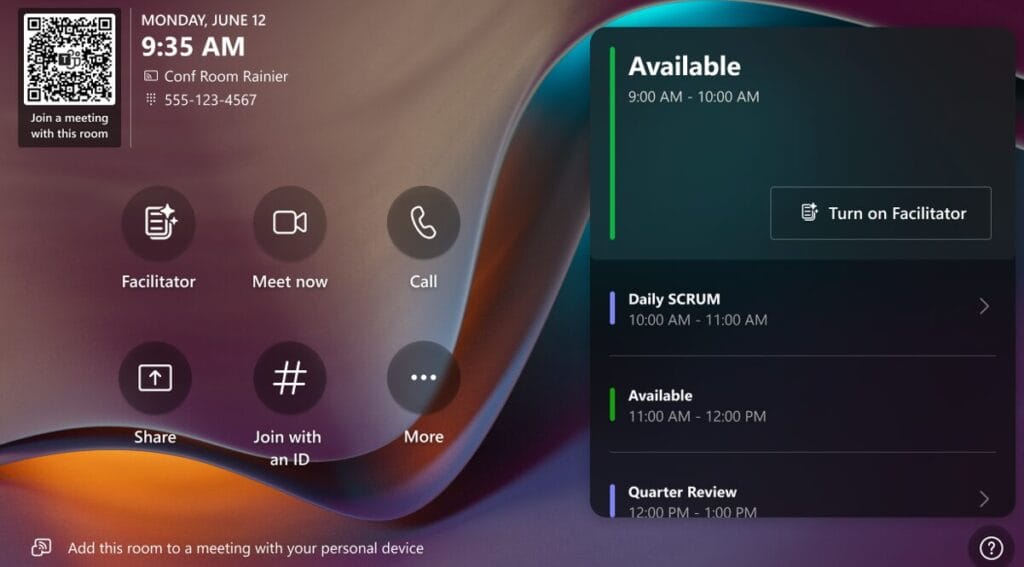
- Ad-Hoc Room Support: Walk into a meeting room, scan a QR code, and the Facilitator starts minuting your physical conversation immediately – no calendar invite required.
Why does this matter for your business?
The “Admin Overhead” Removal For many of our customers, highly paid senior staff spend hours every week typing up notes or chasing follow-ups. The Facilitator automates the “admin tax” of meetings. If it saves your Operations Director or Company Secretary two hours of admin a week, the ROI on the Copilot license is immediate.
Accountability Because the notes and actions are visible to everyone during the call, there is immediate consensus. You leave the meeting with a confirmed “To-Do” list, not a vague memory of a conversation.
What about in-person meetings?
For years, the “hybrid” meeting has been the awkward cousin of the fully remote call. Remote participants get a transcript; people in the room get… well, they get to look at each other.
The Facilitator solves this, especially for businesses with Microsoft Teams Rooms.
If you walk into a meeting room for an ad-hoc discussion, you can now scan a QR code on the Teams Room console (or display) using your mobile. This instantly “invites” the Facilitator agent into the physical room without setting up a formal calendar invite.
The agent listens via the room’s audio hardware, capturing the discussion and generating the same high-quality notes and action items as it would for a remote call.
A Critical Note on Speaker Attribution: For this to work flawlessly – meaning the notes say “John said X” rather than “Room 1 said X” – you need to ensure your Teams Rooms are configured with Intelligent Speakers (supported by vendors like Yealink, Logitech, and Sennheiser) and that your staff have set up their voice profiles in Teams. Without this, you get a great summary, but you lose the specific accountability of who said what.
Requirements
To use the Facilitator, your users generally need:
- Microsoft 365 Copilot License: This is an AI workload and requires the add-on license.
- New Teams Client: It works best on the modern Teams client.
- Loop Components Enabled: Your IT policy must allow Loop components (most do by default now).
There is also a small amount of setup involved by the IT admin.
Getting Started
The Facilitator doesn’t just “appear” – you usually need to invite it or toggle it on in your meeting options. If you have a Teams Room system, you can scan a QR code to start an in-person meeting.
If you are looking to deploy Microsoft 365 Copilot across your business, or you simply want to make your existing Teams environment work harder for you, get in touch. We can assist with the licensing, the configuration, and the user training to ensure your staff actually use the tools you pay for.
Speak to MTG regarding your Microsoft 365 strategy today.