Microsoft’s direction is pretty clear: move organisations through a four-step journey to “password freedom” (i.e. getting rid of passwords!). Start with a strong replacement (Windows Hello for Business / FIDO2), then reduce password prompts, then go properly passwordless, and eventually remove passwords from your business altogehter.
Step 1: Replace passwords with something better
Microsoft’s guidance starts here for a reason: before you reduce or remove passwords, you need a credible replacement. Windows Hello for Business (WHfB) and FIDO2 keys give you a strong, hardware-protected, two-factor credential and can provide single sign-on (SSO) to both M365 and Active Directory resources.
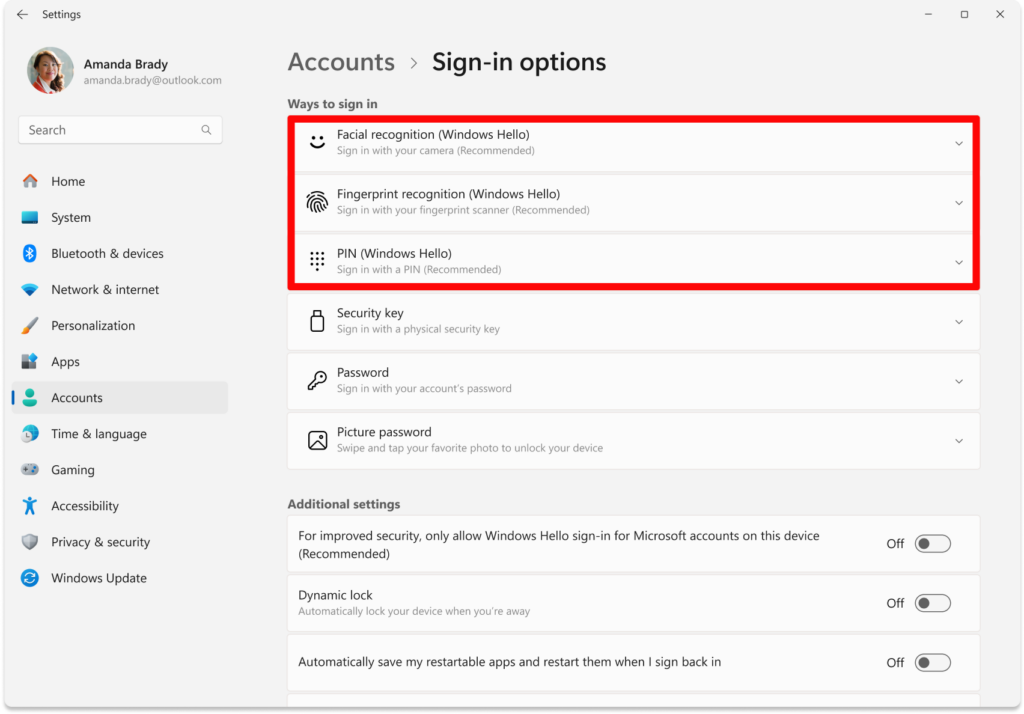
Option A: Windows Hello for Business (built into Windows 11)
Think: face / fingerprint / PIN to unlock a device-bound credential, rather than typing a password.
Windows Hello can be your webcam, pin, or fingerprint reader (more common on laptops).
Option B: FIDO2 security keys (the extra-strong option)
FIDO2 is an open standard for passwordless auth and can use biometrics or a physical security key (the key itself, or a passkey stored on a device).
Security keys are brilliant for:
- Privileged users (admins, finance, execs)
- High-risk environments (phishing-heavy industries)
- Users who don’t want biometrics
- Backup / recovery scenarios
This is something you need to purchase and distribute to staff. The keyrings are USB, but also have NFC options for mobiles.
Step 2: Reduce where passwords are even allowed
This is the step most organisations skip – and then wonder why users keep typing passwords!
Even after WHfB is live, passwords still pop up in:
The goal here is shrinking the password attack surface:
This is where Entra-joined devices make life much easier. Microsoft’s Windows passwordless experience hides password sign-in cleanly. Doing the same in a pure AD world is possible, but far more brittle. Many of our Windows 365 Cloud PC customers are using a passwordless solution.
Step 3: Make passwordless the normal way people work
At this point, users:
They unlock their device with face/fingerprint/PIN and get SSO into everything they need. Passwords still technically exist in the background, but:
This is where the user experience win really shows. Logging in becomes faster and more secure, which is rare in IT.
Step 4: Remove passwords from the directory
This is the long-term endgame, not something you need to rush into. Only do this when:
Once this is the case, it make sense to fully remove passwords from your IT environment.
This is where the user experience win really shows. Logging in becomes faster and more secure, which is rare in IT.
Is Windows Hello for Business the same as Duo MFA?
Short answer: yes – and in many cases it’s better, but it is different.
Customers used to Duo Security are familiar with MFA as something you have (your phone) plus something you know or are (a push approval or biometric). That model works, but it still relies on users responding to prompts – which can be phished or approved by mistake.
Windows Hello for Business achieves the same security outcome in a more native way.
Something you have is the physical device, something you know or are is the PIN or biometric, and the credential itself is device-bound and hardware-protected. There’s no push notification to approve and nothing you can type into a fake login page, which removes one of the biggest failure points of traditional MFA.
Q: What if someone guesses the PIN or steals the laptop?
The PIN isn’t a password. It only works on that device, never leaves it, can’t be reused, and is hardware-protected. Guessing it doesn’t give an attacker a usable login. Brute-force attempts are blocked by anti-hammering. If a laptop is stolen, the attacker still needs the PIN or biometric, the disk is encrypted, and access can be revoked centrally in Microsoft Entra/Intune.
A stolen device is far less risky than a stolen password.
Is Windows Hello for Business considered 2FA?
Yes. Windows Hello for Business is considered strong two-factor authentication because it combines something you have (the physical device with a hardware-protected key) and something you know or are (a PIN, fingerprint, or face). Unlike password + push MFA, the credential is device-bound and phishing-resistant, and in Microsoft Entra it’s treated as strong authentication suitable for high-security access.
Find out more
If you want to dig deeper into going passwordless with Windows Hello for Business, FIDO2 and Microsoft’s recommended approach, check out Microsoft’s official strategy guide:
https://learn.microsoft.com/en-us/windows/security/identity-protection/passwordless-strategy/
Want help planning a rollout or pilot? Just let us know – we can walk you through the practical steps and avoid the common gotchas.